Guide
How to audit removable storage in Windows (events 4663 and 6416): tutorial and limits
Windows can log file access on a USB drive and the recognition of every external device, but none of it is enabled by default. This guide explains how to enable the two audit subcategories involved, how to read a 4663 event and a 6416 event, and what they prove and do not prove. It also shows how to size and collect the Security log, with ready-to-copy PowerShell queries. It was written by the SSHack team, an offensive security firm and the publisher of VigiDoc, a DLP (data loss prevention) tool, based on Microsoft documentation and checks on a Windows 11 computer.
In brief
Two settings in the advanced audit policy bring removable storage into the Windows Security log. Audit Removable Storage writes a 4663 event every time a file on a USB drive or external disk is accessed; Audit PNP Activity writes a 6416 event every time a device is recognized. You enable them through Group Policy or with auditpol, and they only cover what happens afterward. A 4663 event gives the file name, the account, the program and the access right exercised, never the file's content or hash. The Security log, capped at 20 MB by default, overwrites its oldest events.
How we tested
Windows 11 Pro 26H2 (build 26300), Windows PowerShell 5.1, non-elevated session, October 2026. Without administrator rights, this computer let us read the list of audit subcategories and their identifiers, the templates of events 4663 and 6416, the properties of the Security log and the policy help texts. It denied us the effective audit policy and the content of the Security log. We did not enable anything: event volumes are not measured here, and the guide gives you the method to measure them in your environment.
The two subcategories that matter
The Windows advanced audit policy groups about fifty subcategories into families: Logon/Logoff, Object Access, Detailed Tracking, and so on. Two of them cover removable storage. Both write to the Security log, which only administrators and the Event Log Readers group can read.
Audit Removable Storage, in the Object Access family
According to Microsoft, it audits user attempts to access file system objects on a removable storage device, and the event is generated for all objects and all types of access, "with no dependency on object's SACL". That is the difference from regular file system auditing, which requires an audit list (SACL) on every monitored folder: here, every file on a USB drive or external disk is covered. It produces three events: 4656 (a handle to an object was requested), 4658 (the handle was closed) and 4663 (an attempt was made to access an object). The 4663 is the one that counts, because it reports a right that was actually exercised. Microsoft recommends auditing success and failure on workstations, servers and domain controllers.
Audit PNP Activity, in the Detailed Tracking family
It determines when Plug and Play detects an external device. Microsoft rates its volume as "Typically Low". It produces the 6416 (a new external device was recognized) and events 6419 to 6424, which record a device being disabled, enabled or blocked by a device installation policy. It has no failure event: Microsoft recommends it for success only, citing the example of a USB drive plugged into an administrative workstation.
None of this is on by default
In the audit policy recommendations table published by Microsoft (June 2025), the Audit Removable Storage row has no check mark, either in the Windows default column or in the baseline recommendation column; Audit PNP Activity is not listed. Only the minimum audit policy Microsoft suggests for Windows Event Forwarding asks for Removable Storage success. A computer left as is therefore writes neither 4663 nor 6416 events. What it still keeps about a USB drive (the USBSTOR registry key, the setupapi log, event 1006) is covered in our guide How to tell if an employee copied files to a USB drive, which also reports the published case where auditing made all the difference.
Before enabling anything, make three decisions. Inform employees and check your local employment law: in France, for example, article L1222-4 of the Labor Code requires employees to be informed beforehand, the CNIL (France's data protection authority) requires the setup to be proportionate, and the works council (CSE) is consulted in companies with 50 or more employees. For a specific case, consult a lawyer. Choose the scope: all computers, or those that handle customer files, drawings or health data, starting with a few pilot computers. Decide where the logs will go: without collection, auditing will only help an investigation started within days of the events.
Enable them through Group Policy or with auditpol
On an Active Directory domain, Group Policy (GPO) is the method that holds over time: a local setting is replaced by the advanced audit GPO at the next refresh. The labels below are those of the English console; the identifiers (GUIDs) given further down remove any ambiguity on a localized Windows.
- Create a dedicated GPO, for example "Removable storage audit", linked to the organizational unit of the computers in scope. A separate GPO can be extended or disabled without touching anything else.
- Open Computer Configuration > Policies > Windows Settings > Security Settings > Advanced Audit Policy Configuration > Audit Policies.
- Under Object Access, open Audit Removable Storage, check "Configure the following audit events", then Success, and Failure if you want to see denied attempts, for example on a drive set to read-only. In that case, Microsoft's procedure also asks you to enable Audit Handle Manipulation for failure, and for failure only: Microsoft rates its volume as "High" and does not recommend it under normal circumstances.
- Under Detailed Tracking, open Audit PNP Activity and check Success.
- Leave the security option "Audit: Force audit policy subcategory settings (Windows Vista or later) to override audit policy category settings" enabled. That is its default on client computers, and Microsoft recommends keeping it: without it, an older category-based audit policy can take over again.
- Set the Security log size in the same GPO (see below): the two decisions go together.
- On a pilot computer, run
gpupdate /force, check the policy in an elevated console, then unplug and replug a USB drive before copying a file to it.
auditpol /get /subcategory:"{0CCE9245-69AE-11D9-BED3-505054503030}","{0CCE9248-69AE-11D9-BED3-505054503030}"These two GUIDs are the ones auditpol /list /subcategory:* /v assigns on our computer to Removable Storage and Plug and Play Events ("Stockage amovible" and "Événements Plug-and-Play" on a French Windows). Replugging matters: Microsoft states that the device must receive a new security descriptor carrying the audit settings, which may require restarting the device. Microsoft also notes that some Windows 10 versions only write the events when the registry value HotPlugSecureOpen is set to 1 under HKLM\SYSTEM\CurrentControlSet\Control\Storage. On our Windows 11, the key existed without that value; if your pilot computer stays silent, that is the first thing to check.
For a computer outside the domain or for a test, auditpol does the same thing in an elevated console; without elevation, our computer replied "A required privilege is not held by the client". Back up the current state first:
auditpol /backup /file:C:\Temp\audit-before.csv
auditpol /set /subcategory:"{0CCE9245-69AE-11D9-BED3-505054503030}" /success:enable /failure:enable
auditpol /set /subcategory:"{0CCE9248-69AE-11D9-BED3-505054503030}" /success:enable
auditpol /restore /file:C:\Temp\audit-before.csv   # to roll back
Any change to the audit policy itself leaves a 4719 event (system audit policy was changed), with the account, the subcategory and its GUID: you will know later who enabled or disabled auditing, and when.
Reading a 4663 event
We read the template of event 4663 (version 1) in the Microsoft-Windows-Security-Auditing provider on our computer. Its fields, with their XML names:
| Section | Fields (XML name) | What they contain |
|---|---|---|
| Subject | SubjectUserSid, SubjectUserName, SubjectDomainName, SubjectLogonId | The Windows account of the session, not the physical person. The logon ID links the access to the logon (4624). |
| Object | ObjectServer, ObjectType, ObjectName, HandleId, ResourceAttributes | "File" for a file or folder, then its path on the device. The handle ID links the 4663 to its 4656. |
| Process Information | ProcessId, ProcessName | The program that made the access: explorer.exe for a drag and drop, robocopy.exe, 7z.exe, winword.exe... |
| Access Request Information | AccessList, AccessMask | The rights exercised, as %%NNNN codes and in hexadecimal (0x6 for WriteData and AppendData). |
The file path is often expressed with the internal volume name (\Device\HarddiskVolumeN\...) rather than the drive letter: check this on your pilot computer. The "Accesses" field is what separates a read from a write. Microsoft publishes the full table; the useful codes here are:
| Code | Right | Meaning |
|---|---|---|
| %%4416 | ReadData (or ListDirectory) | Reading a file or listing a folder: browsing the drive produces a lot of them. |
| %%4417 | WriteData (or AddFile) | Writing to a file, or creating a file in a folder: the copy to the drive. |
| %%4418 | AppendData (or AddSubdirectory) | Appending data, or creating a subfolder. Microsoft's example pairs %%4417 and %%4418. |
| %%4423 and %%4424 | ReadAttributes, WriteAttributes | File attributes (dates, read-only): frequent, of little use. |
| %%1537 | DELETE | Deleting the file or folder. |
Microsoft recommends monitoring write and delete rights first (WriteData, AppendData, WriteAttributes, DELETE...). The first pass is therefore to set aside ReadData events, as the firm Compass Security advises in the investigation it published in 2019.
Reading a 6416 event
The 6416 is generated every time a new external device is recognized, for example when it is connected or enabled. Version 1 contains:
- Subject: the account on whose behalf the device is registered, almost always SYSTEM. Microsoft recommends alerting when it is not.
- DeviceId: the Device Manager instance path. For a USB drive, it contains the vendor, the model and the serial number (
USBSTOR\Disk&Ven_...&Prod_...\serial&0). - DeviceDescription: the device's readable name.
- ClassId and ClassName: the class. In Microsoft's example, an external disk shows up as DiskDrive ({4D36E967-E325-11CE-BFC1-08002BE10318}); a phone in file transfer mode belongs to the WPD (Windows Portable Devices) class.
- VendorIds, CompatibleIds, LocationInformation: hardware identifiers (VID, PID) and port.
Compass Security notes that these events repeat every time the same device is reconnected: the 6416 gives the full plug-in history, whereas the registry only keeps the first and last dates. A single USB drive goes through several driver layers and can produce several 6416 events per connection; the DeviceId lets you group them. This subcategory has no removal event.
What these events prove, and what they don't
An audit log lines up events; the reconstruction is still up to you. The table sums up what you can draw from them after a copy to a USB drive, and what you will have to look for elsewhere.
| Question | What auditing establishes | What it does not establish |
|---|---|---|
| Which drive? | Model, serial number, class and time of each recognition (6416). | The removal, which the Partition/Diagnostic log (event 1006) provides. |
| Which file? | Its name and path on the device (4663). | Its original location on the computer or network: auditing only sees the destination. |
| Read or copy? | The right exercised: WriteData or AppendData for a write, ReadData for a read. | The exact direction: a file opened from the drive and then saved also produces a write. |
| What content? | Nothing. | Not the content, not the size, not a hash. "Clients.xlsx" can hold 30,000 rows or none. |
| Who? | The Windows account and its session. | The person: a shared computer or a lent password muddies the trail. |
| With what? | The program (explorer.exe, robocopy.exe, 7z.exe...). | The content of a password-protected archive: only its name appears. |
| A phone? | Its recognition (6416, WPD class). | The files copied to it: a phone in file transfer mode does not expose a Windows file system. Test this on your own fleet. |
| When? | The time of each access, in UTC in the XML. | Nothing before auditing was enabled, nothing after the log was overwritten. |
| An alert? | None: the event is written, nobody is notified. | An alert requires a collector and a rule. |
The content row is the most costly one. After an employee leaves, the employer and their lawyer want to know exactly which data left; learning that a file named Clients.xlsx was written to a USB drive is not enough. Auditing answers with a name; the copy of the file is on the drive, with the person who left. Our first-48-hours protocol (in French) explains how to preserve what exists and when to hand over.
Sizing the Security log
On our computer, wevtutil gl Security, which works without elevation, returns a maximum size of 20,971,520 bytes (20 MB), with no retention and no automatic backup: when the log is full, the oldest events are overwritten. The documentation of the matching policy also gives 20 MB by default; the help text installed on the same computer says 40 MB. Trust the command, not the text. With removable storage auditing, every folder browse, every file open and every copy adds events: 20 MB may cover weeks on an office computer, or a few hours on a computer that syncs an external disk. Microsoft publishes no typical volume for this subcategory. You have to measure it.
Measure, then set
Enable auditing on two or three representative computers, let it run for one to two weeks, then run the counting query in the PowerShell section. It gives the number of 4663 and 6416 events per day and the average size of an event. The size you need follows: events per day × average size × days to keep, with headroom for other security events. A notice period often lasts one to three months: that is the useful horizon for a departure.
Set the size
Through Group Policy: Computer Configuration > Administrative Templates > Windows Components > Event Log Service > Security > Specify the maximum log file size (KB), between 20,480 KB (20 MB) and 2,147,483,647 KB (2 TB). In the same folder, leave the policy Control Event Log behavior when the log file reaches its maximum size disabled: when it is enabled, the log stops recording once full and new events are lost. On a standalone computer, as administrator, wevtutil sl Security /ms:1073741824 sets 1 GB. Microsoft states that on recent computers, increasing log sizes produced no noticeable performance difference; disk space is the only cost.
Two events to watch
Event 1102 (the audit log was cleared) and event 4719 (the audit policy was changed) signal that someone tampered with the setup. An employee without administrator rights can produce neither: across a fleet, they deserve an immediate alert.
Collecting logs across a fleet
A local log offers poor protection: it gets overwritten, it disappears when the computer is reimaged, and it alerts no one. Two options exist with no extra license; we describe them without recommending one.
Windows Event Forwarding
Built into Windows, Windows Event Forwarding (WEF) forwards selected events to a collector server. The simplest mode is the source-initiated subscription: a GPO gives the computers the collector's address, and the Network Service account is added to the Event Log Readers group so it can read the Security channel. In a domain, the connection is encrypted with Kerberos and mutually authenticated. Microsoft counts about 3,000 events per second for a collector on commodity hardware, across all subscriptions.
Three documented limits. WEF is passive: it can neither enlarge a log nor change an audit policy, all of which is still done through GPO. The computer's local log acts as a buffer when the collector is unreachable, and if it is overwritten in the meantime, no notification is sent to the collector. Finally, the default RenderedText format doubles or triples the size of each event; the "Events" format is more compact. The subscription can be limited to the useful events:
<QueryList>
  <Query Id="0" Path="Security">
    <Select Path="Security">*[System[(EventID=4663 or EventID=6416 or EventID=1102 or EventID=4719)]]</Select>
  </Query>
</QueryList>
An open-source SIEM: the Wazuh example
Wazuh is an open-source detection and log management platform in the SIEM family (tools that centralize and correlate security logs). Its documentation states that the Windows agent monitors the System, Application and Security channels by default, and that a block in the ossec.conf file accepts a query to filter the events forwarded:
<localfile>
  <location>Security</location>
  <log_format>eventchannel</log_format>
  <query>Event/System[EventID=4663 or EventID=6416]</query>
</localfile>
Security channel events then go through its Windows rules (IDs 60100 to 60599) and can trigger an alert depending on the rules in place; isolating writes to removable storage usually requires writing your own rule. Other tools, open-source or commercial, read the same logs. The principle does not change: the events must leave the computer before they are overwritten, and someone has to look at them. On a fleet of a few dozen to a few hundred computers without a dedicated security team, that last condition is the one most often missing.
Ready-to-copy PowerShell queries
Run these commands in a Windows PowerShell console opened as administrator. A trap we noticed on our computer: without elevation, Get-WinEvent -FilterHashtable on the Security log answers "No events were found" instead of an access denied error. Fields are read from the event XML by name, so the queries do not depend on their position.
1. Recognized devices (6416)
Get-WinEvent -FilterHashtable @{ LogName='Security'; Id=6416 } |
  ForEach-Object {
    $d = @{}
    ([xml]$_.ToXml()).Event.EventData.Data | ForEach-Object { $d[$_.Name] = $_.'#text' }
    [pscustomobject]@{
      Time     = $_.TimeCreated
      Class    = $d.ClassName
      Name     = $d.DeviceDescription
      Instance = $d.DeviceId
    }
  } | Where-Object { $_.Class -in 'DiskDrive','WPD','USB' } | Format-Table -AutoSize
2. Writes to the device only (4663)
Get-WinEvent -FilterXPath "*[System[EventID=4663 and Task=12812]]" -LogName Security |
  ForEach-Object {
    $d = @{}
    ([xml]$_.ToXml()).Event.EventData.Data | ForEach-Object { $d[$_.Name] = $_.'#text' }
    if ($d.AccessList -match '%%4417|%%4418') {
      [pscustomobject]@{
        Time    = $_.TimeCreated
        Account = $d.SubjectUserName
        File    = $d.ObjectName
        Program = Split-Path $d.ProcessName -Leaf
      }
    }
  } | Sort-Object Time | Format-Table -AutoSize
The Task=12812 filter isolates the Removable Storage subcategory: on our computer, that is the task value the audit provider associates with Removable Storage, versus 12800 for File System. A single copied file often produces several 4663 events; add | Sort-Object File -Unique for a list of distinct files.
3. Count events to size the log
$log = Get-WinEvent -ListLog Security
"{0} events, {1:N1} MB, {2} bytes on average" -f $log.RecordCount, ($log.FileSize/1MB), [math]::Round($log.FileSize/$log.RecordCount)
Get-WinEvent -FilterHashtable @{ LogName='Security'; Id=4663,6416 } |
  Group-Object { $_.TimeCreated.ToString('yyyy-MM-dd') }, Id | Select-Object Name, Count
(Get-WinEvent -LogName Security -Oldest -MaxEvents 1).TimeCreated
The last line gives the date of the oldest event still present, and therefore the number of days the log actually covers.
4. Export the period around a departure
$start = Get-Date '2026-09-01'; $end = Get-Date '2026-09-30 23:59'
Get-WinEvent -FilterHashtable @{ LogName='Security'; Id=4663,6416; StartTime=$start; EndTime=$end } |
  Select-Object TimeCreated, Id, @{ n='XML'; e={ $_.ToXml() } } |
  Export-Csv -Path C:\Temp\audit-usb-september.csv -NoTypeInformation -Encoding UTF8
wevtutil epl Security C:\Temp\Security-copy.evtx
The second command exports the whole log in its native format, which is easier to have examined by an expert than a CSV. If legal action is possible, have this copy made by a forensic provider or in the presence of a court officer (a commissaire de justice in France), and work on the copy. The last-30-days security checklist places this step in the timeline of a departure.
The view from an offensive team
In internal penetration tests, SSHack plays the employee who wants to take files out. Against Windows auditing, three findings keep coming back. Auditing is silent: nothing changes on screen during the copy, so a determined person has no reason to switch channels. It does not withstand a local administrator account: clearing the log or disabling the subcategory takes one command, even if each leaves a 1102 or a 4719 event that a collector will pick up. That is one more reason not to hand out that right. Finally, it says nothing about content: a file renamed "vacation-photos.zip" before the copy passes a review of file names.
For someone leaking data, the alternative routes are well known and described in MITRE ATT&CK, the public knowledge base of attack techniques: a phone in file transfer mode, a password-protected archive, personal webmail in the browser, screenshots. Our guide Data exfiltration techniques and the traces they leave reviews them, with the native trace each one leaves. On the choice between blocking and monitoring, see our Red Team perspective.
Where a detection DLP fits
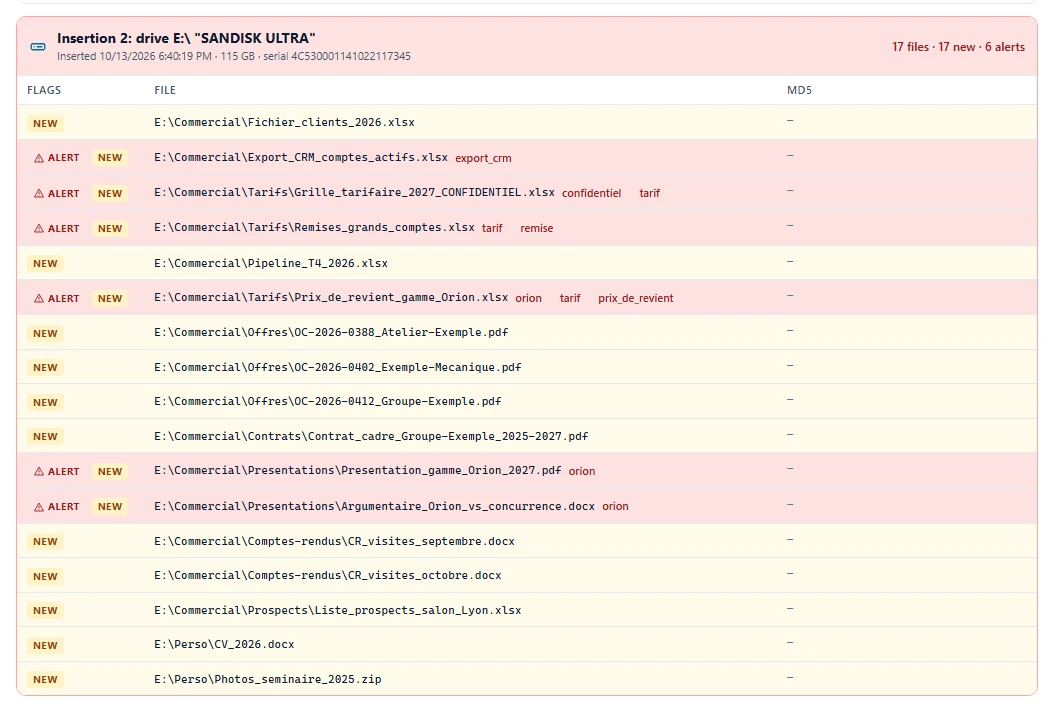
Windows auditing is free and worth enabling on any fleet that handles sensitive data. It leaves three questions open: the content of the files, reading the logs day to day, and keeping them beyond the local log. VigiDoc, SSHack's DLP software for Windows endpoints, answers them without blocking anything. Its agent logs every insertion and removal of a USB drive or disk (letter, name, size, serial number) and every file copied or overwritten on the device with its time, and sends an encrypted copy of that file to a server hosted on your premises. An alert appears in the Dashboard when a keyword you defined shows up in the file name or content (.txt, .pdf, .docx, .xlsx and .zip archives); our guide to keywords by industry gives ready-to-test lists. Auditing proves the access, the DLP shows the file: the two complement each other.
VigiDoc does not see everything. Printing, screenshots, a phone plugged in for file transfer and text pasted into webmail or an AI tool are outside its reach (only the visit to the page is logged). For a password-protected archive, it logs that the archive left without reading its content. It is not retroactive. To have the list and a copy of the files that left before the next departure, try it: the 30-day trial starts when you install the server, with no license to request, and works on an air-gapped network.
Frequently asked questions
Is removable storage auditing enabled by default in Windows?
No. The Removable Storage and Plug and Play Events subcategories are not enabled in the default configuration of Windows 10 and 11, and Microsoft's baseline recommendation does not include them. You enable them through Group Policy or with auditpol, and nothing is retroactive: a copy made before auditing was enabled leaves no 4663 event.
Does a 4663 event prove that a file was copied to the drive?
It proves that an account, through a given program, exercised an access right on a file on the drive at a precise time. For a copy to the drive, look for WriteData (%%4417) or AppendData (%%4418); ReadData (%%4416) is only a read. The event does not contain the file's content, its hash or its original location on the computer.
How large should the Security log be?
It is capped at 20 MB by default and overwrites its oldest events when full. Microsoft publishes no typical volume for removable storage auditing: measure it for one or two weeks on a few pilot computers, then set the size through Group Policy, between 20 MB and 2 TB, to cover at least the length of a notice period. Without central collection, size it generously.
Do you need a SIEM to use these events?
Not to read them on one computer: Get-WinEvent in an elevated console is enough. To keep and monitor them across a fleet, they have to leave the endpoints: Windows Event Forwarding to a collector, built into Windows, or an open-source SIEM such as Wazuh, whose agent reads the Security channel by default. You also need someone to read the alerts.
What is the difference between Windows auditing and a detection DLP like VigiDoc?
Windows auditing logs file access on removable storage: file name, account, program, time and type of access. A detection DLP like VigiDoc logs every file copied or overwritten on the drive, keeps an encrypted copy on a server hosted on your premises and alerts when a keyword appears in the file name or content. Auditing is free and built in; the DLP answers the question of exactly what left.
Sources
- Microsoft Learn, Audit Removable Storage, archived Windows 10 documentation, page dated September 6, 2021, accessed October 21, 2026: definition, no dependency on the SACL, events 4656, 4658 and 4663, recommendations by computer type.
- Microsoft Learn, Audit PNP Activity, page dated September 6, 2021: definition, "Typically Low" volume, events 6416 and 6419 to 6424, no failure event.
- Microsoft Learn, 4663(S): An attempt was made to access an object, page dated September 7, 2021: fields, access rights table, rights to monitor.
- Microsoft Learn, 6416(S): A new external device was recognized by the System, page dated September 9, 2021: version 1 fields, DiskDrive class example, alert when the subject is not SYSTEM.
- Microsoft Learn, Monitor the use of removable storage devices, page dated September 9, 2021: GPO procedure, failure auditing with Audit Handle Manipulation, new security descriptor, HotPlugSecureOpen value.
- Microsoft Learn, Audit Handle Manipulation, page dated September 6, 2021: "High" volume, not recommended for enabling; Microsoft Learn, Advanced security audit policy settings, page dated September 6, 2021.
- Microsoft Learn, Audit: Force audit policy subcategory settings to override audit policy category settings, page dated April 19, 2017: default value and recommendation.
- Microsoft Learn, Audit Policy Recommendations, page dated June 13, 2025: Windows defaults and baseline and stronger recommendations.
- Microsoft Learn, Use Windows Event Forwarding to help with intrusion detection, page dated August 18, 2025: passive nature, local log as a buffer, formats, 3,000 events per second, minimum audit policy including Removable Storage, performance.
- Microsoft Learn, EventLogService Policy CSP, page dated March 12, 2025: Security log size, 20 MB by default, from 20,480 KB to 2,147,483,647 KB.
- Microsoft Learn, 1102(S): The audit log was cleared and Microsoft Learn, 4719(S): System audit policy was changed, pages dated September 7, 2021.
- Compass Security, Investigating Data Leakage via External Storage Devices, Damian Pfammatter, April 26, 2019: real investigation based on 4663 events, advice to set aside ReadData, 6416 events repeated at every connection.
- Wazuh, Configuration (log data collection) and localfile reference, accessed October 21, 2026: channels monitored by default, eventchannel format, queries, Windows rule ranges.
- French Labor Code, article L1222-4 (in French); CNIL, le contrôle de l'activité des personnes employées (monitoring employee activity, in French).
- SSHack checks, October 2026, Windows 11 Pro 26H2 (build 26300), non-elevated session:
auditpol /list /subcategory:* /v(subcategory GUIDs); templates of events 4663, 4656, 6416, 4719 and of tasks 12800, 12812 and 13316 in the Microsoft-Windows-Security-Auditing provider;wevtutil gl Security(20,971,520 bytes, retention disabled); help text of the Security log size policy (EventLog.adml); HotPlugSecureOpen value absent; access denied toauditpol /getand to the content of the Security log.