Guide
Block or monitor USB drives? The right choice for an SMB
Tutorials explain how to block USB drives with Group Policy; they assume the decision has already been made. This guide helps you make it: five options, what each one prevents or reveals, what it costs to run and how it gets bypassed, followed by a decision tree. It was written by SSHack, an offensive security firm and the publisher of the VigiDoc DLP software.
In brief
To block USB drives in a company, Windows is enough: a Group Policy Object (GPO) or Intune denies access, or only write access, to removable storage, with no additional software. A full block suits computers that never need a USB drive; elsewhere, a list of authorized company drives avoids piling up exceptions. A block tells you nothing about what leaves through the drives that remain authorized: to know that, you have to monitor copies, with Windows auditing or a detection DLP. A common combination: block on most computers, authorize a few company drives and monitor what is copied to them.
Five options, not two
The question is often framed as binary: block, or let it happen. The CNIL (France's data protection authority) recommends limiting the connection of removable media to what is strictly necessary, which leaves room for several settings. Windows and Microsoft tools offer five, and they do not meet the same need:
- Block everything: no removable storage works on the computer.
- Read-only: users can read the drives they receive but cannot write to them.
- Company drives only: a few identified drives work, the others do not.
- Windows auditing: nothing is blocked, and access to files on the drives is logged.
- A detection DLP: nothing is blocked, and every copied file is recorded, kept and analyzed.
The first three options restrict: they prevent certain copies. The last two monitor: they let copies happen and record them. The two families can be combined, and the combination often gives the best result.
Policy names are given as they appear in the English administrative templates of Windows 11, as read on our test computer. On a localized Windows, the labels are translated.
Option 1: block all removable storage
This is the simplest setting, and the most drastic. In a GPO linked to the computers in scope:
Computer Configuration > Policies > Administrative Templates
  > System > Removable Storage Access
    "All Removable Storage classes: Deny all access"  =  Enabled
According to Microsoft's help text, this setting overrides the per-class settings in the same folder and denies access to all those classes: removable disks (USB drives, memory cards, most external disks), CDs and DVDs, and portable devices (WPD) such as phones. It also exists under User Configuration, which lets you target users rather than computers, and use security filtering to exclude the group that needs an exception.
One often-forgotten point is in the same help text: the new access right only applies at the computer's next restart, unless you configure the forced-reboot delay in the same folder, "Set time (in seconds) to force reboot". With Intune, these settings are available in the settings catalog, and Defender device control provides the same default deny (see option 3).
- What it prevents: any copy to removable storage, and malware coming in on a USB drive.
- What it reveals: nothing. Neither attempts nor what left before the block.
- Operating cost: low to deploy. After that, every legitimate need (a customer's USB drive, a machine update, a backup) becomes an exception request to handle.
- Bypasses: the other channels (email, web, cloud, a photo of the screen) and local administrator rights, which allow the restriction to be lifted.
- Impact on work: none on computers that never use a USB drive; disruptive for the others, who will look for another way to exchange files, often a less secure one.
Option 2: read-only
Employees can read the drives they are given (by a customer, a supplier, a shop-floor machine) but cannot write anything to them. In the same GPO folder:
"Removable Disks: Deny write access"  =  Enabled
"WPD Devices: Deny write access"  =  Enabled
"CD and DVD: Deny write access"  =  Enabled
"Removable Disks: Deny execute access"  =  Enabled, as an extra
The second setting is the one most often forgotten. Windows puts phones connected in file transfer mode (MTP) in a separate class, portable devices (WPD): without this setting, the phone stays open for writing while USB drives are closed. The last setting, available only on the computer side, prevents programs from running from the drive, which reduces the risk of infection.
- What it prevents: copying files to a USB drive, an external disk or a phone.
- What it reveals: nothing more than option 1.
- Operating cost: low; exceptions only concern writing.
- Bypasses: the same as for the full block. Since reading stays open, a booby-trapped file can still come in: keep your antivirus and removable media scanning.
- Impact on work: files received remain readable; people who need to hand a file over on a USB drive, to a customer or to a machine, are blocked.
Option 3: allow only company drives
Only drives supplied by the company work, or only they remain writable. Three mechanisms make this possible, depending on your tools.
With Windows device installation restrictions
In Computer Configuration > Policies > Administrative Templates > System > Device Installation > Device Installation Restrictions, you prevent the installation of removable devices and then allow a list of identifiers. There are two levels. The hardware ID identifies a model: Microsoft points out that it is not unique, so every drive of that model gets through, including one an employee buys personally. The instance ID contains the serial number and identifies one specific drive; buy drives that have a unique serial number.
For the allow rule to take precedence over the prevent rule, enable the layered evaluation order policy (Apply layered order of evaluation for Allow and Prevent device installation policies across all device match criteria), available since Windows 10 21H2. Three precautions:
- These policies act when the driver is installed. A drive already installed on the computer remains usable, unless you check "Also apply to matching devices that are already installed" in a prevent policy by class or by identifier; the general policy that prevents removable devices does not offer this checkbox.
- Microsoft warns that an overly broad prevent rule can cut off keyboards, mice and USB hubs: you must also allow controllers and hubs, and test on a pilot computer.
- These settings apply to computers, never to users.
With BitLocker To Go
In Computer Configuration > Policies > Administrative Templates > Windows Components > BitLocker Drive Encryption > Removable Data Drives, the policy "Deny write access to removable drives not protected by BitLocker" mounts any unencrypted drive as read-only. With its option "Do not allow write access to devices configured in another organization", and an identifier set in "Provide the unique identifiers for your organization", only drives encrypted by your organization remain writable. To stop employees from encrypting their own personal drive, remove the users' right to apply BitLocker in "Control use of BitLocker on removable drives".
The upside: a lost drive is encrypted. The limits: the drive remains readable anywhere by whoever knows its password; the policy is ignored if "Removable Disks: Deny write access" is enabled; and it does not cover phones, which have to be closed with the WPD setting from option 2.
With Defender device control
If you have Microsoft Defender for Endpoint (Plan 1 or 2) or Defender for Business, included in Microsoft 365 Business Premium, device control is the most granular mechanism. It builds groups of drives by serial number, by vendor and model (VID and PID) or by instance ID, distinguishes read, write and execute, accepts per-user conditions and also applies to phones (WPD). Microsoft's documentation gives the example of a rule that keeps all USB drives read-only and allows writing only to a list of drives.
Audit entries record allowed or denied access, within the documented limit of 300 events per device per day. With Defender for Business, configuration goes through Intune, included in Business Premium. What these licenses cover exactly is detailed in our guide DLP and Microsoft 365 Business Premium.
- What it prevents: the use of personal and unknown USB drives.
- What it reveals: little, except with Defender, which logs allowed or denied access, not file content.
- Operating cost: the highest of the blocking options, with an inventory of drives, handing them out and getting them back (especially when an employee leaves), replacing lost drives, and testing every new model.
- Bypasses: the authorized drive itself, which, once the files are copied to it, leaves the building like any other drive. With a list by model, a personal drive of the same model gets through.
- Impact on work: low for those who have a company drive; one more step for the others.
Option 4: monitor with Windows auditing
Windows can log access to files on removable storage, but it is not enabled by default. Two subcategories of the advanced audit policy are useful:
- Removable Storage, in the Object Access category: event 4663 (an attempt was made to access an object), along with 4656 and 4658, for files read from or written to the device. Microsoft states that no system access control list (SACL) is needed.
- Plug and Play Events, in the Detailed Tracking category: event 6416, when the system recognizes a new external device.
Across a fleet, enable them through GPO in Computer Configuration > Policies > Windows Settings > Security Settings > Advanced Audit Policy Configuration. On a standalone computer, in a command prompt run as administrator, the identifiers (GUIDs) avoid label differences between Windows language versions:
auditpol /set /subcategory:"{0CCE9245-69AE-11D9-BED3-505054503030}" /success:enable /failure:enable
auditpol /set /subcategory:"{0CCE9248-69AE-11D9-BED3-505054503030}" /success:enable
auditpol /get /subcategory:"{0CCE9245-69AE-11D9-BED3-505054503030}"
These two GUIDs are the ones auditpol /list /subcategory:* /v returns on Windows 11 for Removable Storage and Plug and Play Events. An advanced audit GPO applied to the computer replaces these local settings.
The price of this option is volume. Microsoft states that an event is generated for all objects and all types of access requested: browsing a folder on the drive generates events, just like copying a file. Yet the Security log is small: 20 MB by default on our Windows 11 test computer (wevtutil gl Security), overwritten when full. On a busy computer, it may cover only a short period. You therefore need to enlarge the log or, better, collect the events on a server (Windows Event Forwarding or a SIEM), then analyze them.
- What it prevents: nothing.
- What it reveals: new devices and access to files on the drive, with the time, the account and the program. Not the original file, not its content, no copy.
- Operating cost: zero in licenses, real in time: collection, storage, alert rules to write in the SIEM, or someone to read the logs.
- Bypasses: a phone in MTP mode, which is not a removable disk; clearing of the log by an administrator of the computer (this itself leaves a 1102 event, but everything else is gone); the other channels.
- Impact on work: none.
Nothing is retroactive: what was copied before auditing was enabled leaves no such trace. These logs, and what they do and do not prove, are covered in detail in our guide How to tell if an employee copied files to a USB drive. For just the list of USB drives plugged into a computer, with no prior auditing, see our free PowerShell script. To set up auditing step by step, see our removable storage audit tutorial (events 4663 and 6416).
Option 5: monitor with a detection DLP
A detection DLP lets the copy happen, records it and alerts when it involves a sensitive file. That is the approach of VigiDoc, the software we publish. On USB drives and external USB disks and SSDs, it records every insertion and removal (drive letter, volume name, size, serial number), logs every file copied or overwritten on the device and sends an encrypted copy of that file to a server hosted on your premises. An alert is raised when a keyword you defined appears in the file name or content (.txt, .pdf, .docx, .xlsx and .zip archives).
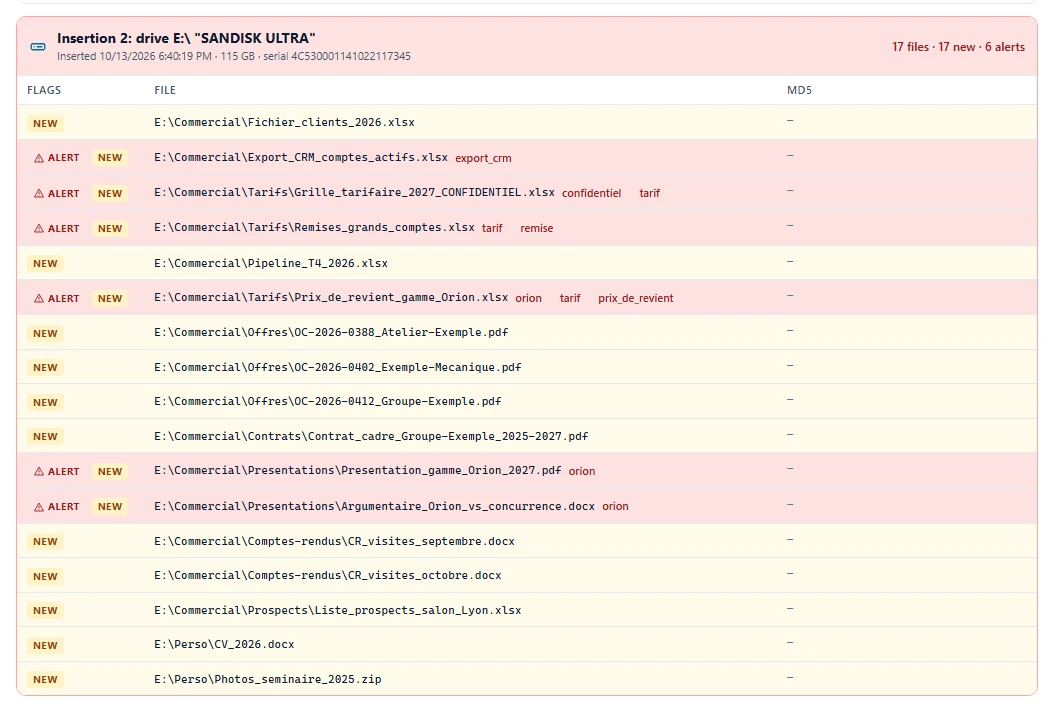
VigiDoc does not block anything: the copy takes place, and the analyst has the list, the time and the file itself. Microsoft Purview also offers Endpoint DLP, which can audit or block a copy based on the file's sensitivity and keep evidence of it, but it is not included in Microsoft 365 Business Premium: see our guide DLP and Microsoft 365.
- What it prevents: nothing, by design.
- What it reveals: which drive, when, which files, with a copy of each one and keyword alerts.
- Operating cost: agents to deploy, a server to host, alerts to read and keywords to tune.
- Bypasses: a phone in MTP mode, with no drive letter, is not tracked; close it with the WPD setting from option 2. An encrypted archive is logged, but its content stays unreadable. Cloud, printing, photos of the screen and webmail other than Gmail and Outlook on the web are not covered.
- Impact on work: none.
The decision tree in five questions
Ask these questions computer by computer, or for each group of computers with the same uses.
- Does this computer need removable storage for its work? No: block all removable storage (option 1), phones included, and remove local administrator rights. Yes: go to question 2.
- Is the need limited to reading files received? Yes: read-only (option 2), execution denied and antivirus scanning of removable media. No, writing is needed too: question 3.
- Can you supply and track company drives? Yes, for a limited number of people: allow only those drives (option 3), with the mechanism your tools allow, Defender if you have it, otherwise BitLocker To Go or installation restrictions. No (scattered needs, customer drives, shared computers): writing stays open, go to question 4.
- Do you need to know what leaves through the drives that remain authorized? If the computers handle customer files, drawings, health data or R&D data, yes. Choose Windows auditing (option 4) if you have a log collector and the time to read the logs; a detection DLP (option 5) if you want the list of files, a copy of each and alerts.
- Does the risk come from a specific person, for example an employee who is leaving? A block decided at that moment puts the person on alert and tells you nothing about what has already left. Keep monitoring in place and follow the employee offboarding security checklist, which also covers email and the web.
Applied to an SMB, the tree often leads to different settings by department. Here are example combinations, to adapt to your actual uses:
| Computers | Suggested setting | Why |
|---|---|---|
| Accounting, HR, reception | Full block, phones included | No routine need for USB drives; exchanges go through the network or email. |
| Sales, project managers | Writing limited to encrypted company drives, copies monitored | They hand files to customers and handle the customer database and proposals. |
| Shop floor, maintenance | Read-only or drives dedicated to machines, execution denied | Some machines receive their programs by USB drive; the main issue is infection. |
| Engineering, R&D, management | Company drives, writing to phones denied, copies monitored with keyword alerts | The most sensitive files; the trace and the copy are useful in an investigation. |
Summary table
| Option | Prevents | Reveals | Operating cost | Bypasses | Impact on work |
|---|---|---|---|---|---|
| 1. Block everything | Any copy to removable storage; malware coming in by USB drive | Nothing | Low at first, then the exceptions | Other channels; local administrator rights | None or disruptive, depending on the computer |
| 2. Read-only | Copies to a USB drive, disk or phone (with the WPD setting) | Nothing | Low | Other channels; booby-trapped incoming files | Files received remain readable |
| 3. Company drives | Personal and unknown drives | Allowed or denied access (with Defender) | High: inventory, handing out, getting back | The authorized drive itself; same model if the list is by model | Low for those who have a drive |
| 4. Windows auditing | Nothing | New devices, file access | Log collection and analysis | Phone in MTP mode; cleared log; other channels | None |
| 5. Detection DLP | Nothing | Drive, copied files, encrypted copy, alerts | Agents, server, alerts to read | Phone in MTP mode; encrypted archive; channels not covered | None |
The "Prevents" and "Reveals" columns complement each other: no option really does both. Hence the value of combining an option from the first family on most computers with an option from the second wherever writing stays open.
Bypasses to plan for
Whichever option you choose, test these paths before considering the matter settled:
- The phone. In file transfer mode (MTP), it has no drive letter and escapes settings aimed at removable disks: plan for the WPD setting or Defender device control.
- The fast USB disk. Some USB SSDs and enclosures present themselves to Windows differently from a standard USB drive. Check your settings with the models your employees actually use.
- The encrypted archive. A content-based rule cannot read a password-protected archive; only the fact that the file left remains visible.
- The other channels. Email to a personal address, webmail, online file sharing, cloud sync, printing, a photo of the screen: closing USB drives shifts the problem to them.
- Local administrator rights. An administrator of their own computer can change the settings or clear the logs: removing that right is a prerequisite for every option.
From the point of view of an insider attacker (the role SSHack plays in penetration tests), a block shows which door is closed and pushes them toward another one; a discreet trace remains even when the copy succeeds. We discuss this choice in "Detect or block?", a section of our DLP software guide.
Finally, whether you block or monitor, write the rule into your IT acceptable use policy. Monitoring employee activity also requires informing employees beforehand and a setup proportionate to its purpose (in France, the Labor Code and the CNIL guidelines; check your local employment law). For any question of evidence or disciplinary action, consult a lawyer.
Monitor USB copies without blocking work
VigiDoc does not replace your GPOs: it does not block any transfer. It works alongside them on the computers where writing stays open: every USB drive, disk or SSD plugged in is identified by its serial number, every file copied or overwritten is logged, and an encrypted copy goes to a server hosted on your premises, including on an air-gapped network. Keyword alerts appear in the Dashboard without interrupting the user.
What it does not see: phones in MTP mode, the content of password-protected archives, transfers through the cloud or through webmail other than Gmail and Outlook on the web. For phones, the "WPD Devices: Deny write access" setting fills the gap. The 30-day trial starts as soon as you install the server, with no license to request.
Frequently asked questions
How do I block USB drives with a GPO?
In a GPO linked to computers, open Computer Configuration > Policies > Administrative Templates > System > Removable Storage Access, then enable "All Removable Storage classes: Deny all access". To prevent copying only, enable "Removable Disks: Deny write access" and "WPD Devices: Deny write access" instead. According to Microsoft, the change takes effect when the computer restarts.
Does blocking USB drives also block phones?
Not necessarily. A phone connected in file transfer mode (MTP) is seen by Windows as a portable device (WPD), not as a removable disk. If you only configure removable disks, add "WPD Devices: Deny write access", or an equivalent rule in Defender device control.
Can I allow only company-issued USB drives?
Yes, in three ways: Windows device installation restrictions, with the instance ID of each drive; BitLocker To Go, which only allows writing to drives encrypted by your organization; or device control in Defender for Endpoint and Defender for Business, which can filter by serial number among other criteria. In all three cases, the authorized drive remains a way to take files out.
Does Windows keep a list of files copied to a USB drive?
Not by default. Windows keeps a record of the drives that were plugged in, but file access only appears if Removable Storage auditing was enabled before the copy (event 4663). Even then, no copy of the file is kept, and the Security log is overwritten when it is full.
Can VigiDoc block USB drives?
No. VigiDoc detects and alerts: it logs every file copied to a USB drive, keeps an encrypted copy on your server and flags sensitive keywords, without interrupting the copy. To block, use Windows, Intune or Defender policies; VigiDoc records what goes through the drives you leave authorized.
Do employees need to be informed before USB drives are blocked or monitored?
Yes. The rule belongs in the IT acceptable use policy, and a system that records employee activity requires informing employees beforehand and must remain proportionate to its purpose. In France, for example, this follows from the Labor Code and the recommendations of the CNIL (France's data protection authority); check your local employment law. For questions of evidence or disciplinary action, consult a lawyer.
Sources
- Microsoft, Windows administrative templates (
RemovableStorage.admx,DeviceInstallation.admx,VolumeEncryption.admxand their en-US.admlfiles), policy help texts, read on a Windows 11 test computer (build 26300) on October 14, 2026. - Microsoft Learn, Manage Device Installation with Group Policy, page dated August 18, 2025.
- Microsoft Learn, Restrict USB devices using settings catalog in Microsoft Intune, page dated April 30, 2026.
- Microsoft Learn, Configure BitLocker, Removable data drives section, page dated July 29, 2025.
- Microsoft Learn, Device control in Microsoft Defender for Endpoint, accessed October 14, 2026.
- Microsoft Learn, "1102(S): The audit log was cleared", accessed October 14, 2026.
- Microsoft Learn, Device control policies in Microsoft Defender for Endpoint, page dated September 15, 2026 (limit of 300 audit events per device per day).
- Microsoft Learn, Device Control frequently asked questions, page dated January 5, 2026 (availability in Defender for Business, configuration through Intune).
- Microsoft Learn, Overview of Microsoft Defender for Endpoint Plan 1, page dated July 28, 2026.
- Microsoft Learn, What is Microsoft Defender for Business?, page dated August 27, 2025.
- Microsoft Learn, Audit Removable Storage, archived Windows 10 documentation.
- Microsoft Learn, event 6416, A new external device was recognized by the System, archived Windows 10 documentation.
- CNIL, "Securing workstations" (Sécurité : sécuriser les postes de travail), in French, page dated March 14, 2024.