Guide
How to see what files an employee copied to a USB drive
An employee is leaving and the question comes up: what did they take with them on a USB drive? This guide goes through, trace by trace, what Windows 10 and 11 keep without any dedicated tool, what each trace proves and, above all, what it does not. Unless stated otherwise, the commands were run read-only on a Windows 11 test machine by the SSHack team, an offensive security firm and the publisher of VigiDoc.
In short
On a Windows 10 or 11 computer with default settings, you can find out which USB drives were connected and when, but not which files were copied to them. The registry (USBSTOR key), the setupapi.dev.log file and event 1006 in the Partition/Diagnostic log identify the drive and timestamp its connections; recent shortcuts only show files opened from the drive. A list of copied files exists only if logging was active before the fact: Windows "Removable Storage" auditing (event 4663) or DLP software such as VigiDoc. In a case published by Compass Security in 2019, the traces Windows 10 keeps by default recovered only 7 of the 831 files copied.
The short answer: Windows remembers the drive, not the files
When a USB drive is plugged in, Windows installs a driver, assigns a drive letter and records the hardware in several places in the system. That is what lets you find, weeks later, the drive's model, its serial number and the times it was connected. Copying a file to that drive, however, is just a write to a disk: with default settings, Windows keeps no log of it. After the fact, an administrator can therefore find the drive, when it was connected and sometimes the files opened from it, but not the list of files copied.
The Swiss firm Compass Security published a real case in 2019 that measures the gap. Its client suspected an employee of copying sensitive documents to an external device, and had enabled Windows removable storage auditing before the fact. The Security log listed 831 files copied to the device. With only the traces present by default on the Windows 10 computer (shortcuts, Jump Lists, ShellBags, recent files), investigators would have tied just 7 of them to the device: the files the user had opened from the drive after copying them.
7 of 831
copied files recovered using only the default traces of Windows 10, less than 1%
Compass Security, blog, April 26, 2019, one investigation case
831 files
files listed thanks to removable storage auditing (event 4663), enabled before the fact
Same source
What each trace proves, and what it doesn't
The table summarizes the native traces on a Windows 10 or 11 computer with no tool installed. The "Retention" column shows how long the trace survives in practice; observations "on our machine" come from our tests on October 14, 2026.
| Trace | What it proves | What it doesn't prove | Retention |
|---|---|---|---|
USBSTOR registry key (and USB) | A USB storage device of this model, with this serial number, was recognized at least once by the computer. The USB key adds the vendor and product IDs (VID, PID). | Not when, not by whom, not which files. If the second character of the number is "&", the drive has no hardware serial number: Windows generated one, specific to that computer. | Indefinitely, until the device is uninstalled or a major update is installed. On our machine: a drive seen on August 6 was still listed on October 14. |
| Device properties | The first install date, the last arrival date and the last removal date. | Connections in between: each new arrival overwrites the previous one. The last removal may be missing (as observed on our machine). | Same as the registry key; only the latest values remain. |
setupapi.dev.log | The exact time (local time, to the millisecond) the drive was first installed on the computer. | Later connections: only the first install creates a section. | Text file, archived as it grows (on our machine, an archive dated August 26, 2026). |
Event 1006, Partition/Diagnostic log | Each connection and each removal, with manufacturer, model, serial number and capacity (zero on removal). | The signed-in user and the files. A removal is not always recorded. | Circular log, 16 MB on our machine: 140 events over three months took up 1.1 MB. |
MountedDevices and MountPoints2 | The last letter assigned to the drive, and the fact that its volume was mounted in a given user's session (MountPoints2, in their profile). | Letter history: a letter reassigned to another drive erases the old mapping. | Until the letter is reassigned, or the profile is deleted. |
Windows Portable Devices | The drive's volume name (on our machine, "USB" and "SD"). | Nothing about files. | Same as USBSTOR. |
| Recent shortcuts (LNK) and Jump Lists | That a file or folder on the drive was opened, with its path and date. The shortcut also holds the volume serial number. | Not that it was copied to the drive, nor in which direction. A file copied without being opened leaves no shortcut. | In the user profile, until recent items are cleared. |
| ShellBags | That the user browsed a given folder on the drive in File Explorer. | Copied files. | In the user profile, with no fixed duration. Read with a forensic tool. |
| Event 6416, Security log | That an external device was recognized at a given time (ID, name, class). | Files. Only exists if "Plug and Play Events" auditing was enabled. | Security log: 20 MB by default, older events are overwritten. |
| Event 4663, Security log | That a file with a given name was written to the removable device, by a given account and process, at a given time. | Neither the file's content nor its original location. Only exists if "Removable Storage" auditing was enabled before the fact. | Same, and the log fills up fast: every access to a file on the drive, reads included, generates events. |
No row in this table, apart from the last one, links a specific file to a copy onto the drive. The default traces can be cross-checked to build a timeline of connections; they do not replace a file log.
Before you touch the computer
If legal action is being considered
Do not turn the computer on if it is off, and do not search it yourself if it is running: every sign-in and every command changes traces. First have a specialist make a copy of the disk. Whether these traces hold up as evidence, and how they can be used against an employee, is a question for a lawyer. Our guide Data theft by an employee: the first 48 hours (in French) covers these first steps.
The commands below are read-only: they change neither the registry, nor the logs, nor the configuration. They are suitable for a routine check on a computer you manage, or to understand what a forensic expert will be able to find.
Test conditions
Windows 11 Pro 26H2 (build 26300) in a virtual machine, Windows PowerShell 5.1, local administrator account in a non-elevated console, on October 14, 2026. Two devices had been connected to this computer: a 114.6 GB SanDisk drive and an SD card reader. Outputs are reproduced as they appeared (US date format: this copy of Windows is in English), except for serial numbers, which are shortened, and the column names of our own commands, which use English labels on this page.
Check a computer step by step, without any tool
Open Windows PowerShell, available on every Windows 10 and 11 computer. Steps 1 to 6 worked without elevation on our machine; step 7 requires a console run as administrator. To bundle the first checks, our free PowerShell script lists the USB drives connected to a computer, read-only.
1. List the drives already connected (USBSTOR)
Every USB storage device recognized by the computer has a subkey under HKLM\SYSTEM\CurrentControlSet\Enum\USBSTOR: a first level per model (vendor, product, revision), a second per serial number. In Command Prompt:
reg query HKLM\SYSTEM\CurrentControlSet\Enum\USBSTOR /sThe same query, easier to read, in PowerShell:
Get-ChildItem HKLM:\SYSTEM\CurrentControlSet\Enum\USBSTOR\*\* |
  Get-ItemProperty | Select-Object PSChildName, FriendlyName
Output on our test machine:
PSChildName            FriendlyName
-----------            ------------
A0000012…A8D3&0        Generic- SD/MMC USB Device
00002801…0610&0         USB  SanDisk 3.2Gen1 USB Device
The subkey name is the serial number followed by "&0". The neighboring key HKLM\SYSTEM\CurrentControlSet\Enum\USB stores the same number under the vendor and product ID (here VID_0781&PID_55A3 for the SanDisk drive).
2. Date the first and last connection
The dates are stored in a Properties subkey that our non-elevated console could not read ("Requested registry access is not allowed"). The Get-PnpDeviceProperty command reads them without elevation:
Get-PnpDevice -InstanceId 'USBSTOR*' | ForEach-Object {
  $p = Get-PnpDeviceProperty -InstanceId $_.InstanceId
  [pscustomobject]@{
    Device       = $_.FriendlyName
    FirstInstall = ($p | Where-Object KeyName -eq 'DEVPKEY_Device_FirstInstallDate').Data
    LastArrival  = ($p | Where-Object KeyName -eq 'DEVPKEY_Device_LastArrivalDate').Data
    LastRemoval  = ($p | Where-Object KeyName -eq 'DEVPKEY_Device_LastRemovalDate').Data
  }
} | Format-Table -AutoSize
Device FirstInstall LastArrival LastRemoval
------ ------------ ----------- -----------
Generic- SD/MMC USB Device 9/24/2026 10:58:41 AM 9/24/2026 11:08:50 AM 9/24/2026 12:04:17 PM
USB SanDisk 3.2Gen1 USB Device 8/6/2026 4:25:28 PM 9/11/2026 10:22:14 PMHow to read it: the SanDisk drive was installed on August 6, 2026 at 4:25 PM and last connected on September 11 at 10:22 PM. Its last removal date is empty. Every connection between those two dates is gone from this source. Get-PnpDevice shows these devices with the Unknown status: they are no longer connected, but Windows remembers them.
3. Find the first connection in setupapi.dev.log
The text log C:\Windows\INF\setupapi.dev.log records device and driver installations. Search the current file and its archives (setupapi.dev.YYYYMMDD_HHMMSS.log):
Select-String -Path C:\Windows\INF\setupapi.dev*.log `
  -Pattern 'Device Install \(Hardware initiated\).*USBSTOR' -Context 0,1
> C:\Windows\INF\setupapi.dev.20260826_203631.log:32436:>>> [Device Install (Hardware initiated) - SWD\WPDBUSENUM\_??_USBSTOR#Disk&Ven__USB&Prod__SanDisk_3.2Gen1&Rev_1.00#00002801…0610&0#{53f56307-b6bf-11d0-94f2-00a0c91efb8b}]
C:\Windows\INF\setupapi.dev.20260826_203631.log:32437:>>> Section start 2026/08/06 16:25:28.713
> C:\Windows\INF\setupapi.dev.log:17145:>>> [Device Install (Hardware initiated) - SWD\WPDBUSENUM\_??_USBSTOR#Disk&Ven_Generic-&Prod_SD#MMC&Rev_1.00#A0000012…A8D3&0#{53f56307-b6bf-11d0-94f2-00a0c91efb8b}]
C:\Windows\INF\setupapi.dev.log:17146:>>> Section start 2026/09/24 10:58:41.722The "Section start" time is the local time of the first install. The SanDisk drive, connected more than twenty times according to the log in step 4, has a single section, and it was only in the archived file. To track a specific drive, also search these files for its serial number.
4. List every connection and removal (event 1006)
Since Windows 10, the Microsoft-Windows-Partition/Diagnostic log writes an event 1006 each time a disk is connected or removed, with its manufacturer, model, serial number and capacity. On our machine, it was the only native source, readable without elevation, that gave the history across all sessions. This command keeps only USB disks (BusType 7):
Get-WinEvent -FilterHashtable @{ LogName='Microsoft-Windows-Partition/Diagnostic'; Id=1006 } |
  ForEach-Object {
    $d = @{}
    ([xml]$_.ToXml()).Event.EventData.Data | ForEach-Object { $d[$_.Name] = $_.'#text' }
    if ($d.BusType -eq '7') {
      [pscustomobject]@{
        Time   = $_.TimeCreated
        Model  = "$($d.Manufacturer) $($d.Model)"
        Serial = $d.SerialNumber
        GB     = [math]::Round([double]$d.Capacity / 1GB, 1)
      }
    }
  } | Format-Table -AutoSize
Excerpt of the output, for the evening of September 11:
Time                  Model               Serial           GB
----                  -----               ------           --
9/11/2026 10:22:14 PM USB SanDisk 3.2Gen1 00002801…0610 114.6
9/11/2026 10:20:29 PM USB SanDisk 3.2Gen1 00002801…0610 114.6
9/11/2026 9:15:23 PM  USB SanDisk 3.2Gen1 00002801…0610 114.6
9/11/2026 8:54:11 PM  USB SanDisk 3.2Gen1 00002801…0610     0
9/11/2026 8:44:43 PM  USB SanDisk 3.2Gen1 00002801…0610 114.6
A capacity of 0 means a removal. How to read it: the drive was plugged in at 8:44 PM, removed at 8:54 PM and plugged back in at 9:15 PM. The 10:20 PM and 10:22 PM lines are two arrivals with no removal in between: this log should not be read line by line but cross-checked with the other sources. On our machine, the times matched those from step 2 to the second (last arrival of the SanDisk drive at 10:22:14 PM, last removal of the SD reader at 12:04:17 PM).
5. Link the drive to a letter and a user
The HKLM\SYSTEM\MountedDevices registry key maps each letter and each volume to the last device that received it. This command decodes the entries that refer to a USB device:
$md = Get-ItemProperty HKLM:\SYSTEM\MountedDevices
$md.PSObject.Properties | ForEach-Object {
  if ($_.Value -is [byte[]]) {
    $v = [Text.Encoding]::Unicode.GetString($_.Value)
    if ($v -match 'USBSTOR') { '{0}  {1}' -f $_.Name, $v }
  }
}
\??\Volume{4218d6b3-919c-11f1-ba81-080027ea097b} _??_USBSTOR#Disk&Ven__USB&Prod__SanDisk_3.2Gen1&Rev_1.00#00002801…0610&0#{53f56307-…}
\DosDevices\E: _??_USBSTOR#Disk&Ven_Generic-&Prod_SD#MMC&Rev_1.00#A0000012…A8D3&0#{53f56307-…}
\??\Volume{6126f791-b7f4-11f1-ba96-080027ea097b} _??_USBSTOR#Disk&Ven_Generic-&Prod_SD#MMC&Rev_1.00#A0000012…A8D3&0#{53f56307-…}In each user's profile, the MountPoints2 key lists the volumes mounted during their sessions, by ID:
Get-ChildItem 'HKCU:\Software\Microsoft\Windows\CurrentVersion\Explorer\MountPoints2' |
  Where-Object PSChildName -like '{*' | Select-Object PSChildName
On our machine, the ID {4218d6b3-…} of the SanDisk drive's volume appears in both: the drive was mounted in that user's session. For another account, you need to analyze their NTUSER.DAT file. Finally, HKLM\SOFTWARE\Microsoft\Windows Portable Devices\Devices gives the volume name of each device (here "USB" for the SanDisk drive).
6. See the files opened from the drive
When a user opens a file or folder, Windows creates a shortcut in %APPDATA%\Microsoft\Windows\Recent. This command lists the ones whose target is not on drive C:, for example on a USB drive:
$sh = New-Object -ComObject WScript.Shell
Get-ChildItem "$env:APPDATA\Microsoft\Windows\Recent\*.lnk" | ForEach-Object {
  [pscustomobject]@{ Date = $_.LastWriteTime; Target = $sh.CreateShortcut($_.FullName).TargetPath }
} | Where-Object { $_.Target -match '^[ABD-Z]:\\' } | Sort-Object Date -Descending
Excerpt of the output (the other lines pointed to our test machine's shared folders):
Date                 Target
----                 ------
9/11/2026 9:17:21 PM E:\
The root folder E:\ was opened on September 11 at 9:17 PM, two minutes after the SanDisk drive was plugged in: we know the drive was browsed, not what was written to it. Jump Lists (the Recent\AutomaticDestinations folder) and ShellBags (browsed folders) complete the picture, but their binary format requires a forensic tool. All three are created when a file or folder is opened, never when it is copied.
7. Query the Security log (6416 and 4663), as administrator
These two events are only written if the matching audit policy was enabled before the fact, which is not the default. First check the audit policy, in a console run as administrator. Using the GUIDs avoids the subcategory names, which are translated on non-English versions of Windows:
auditpol /get /subcategory:"{0CCE9245-69AE-11D9-BED3-505054503030}"
auditpol /get /subcategory:"{0CCE9248-69AE-11D9-BED3-505054503030}"
The first GUID is the "Removable Storage" subcategory (event 4663), the second is "Plug and Play Events" (event 6416). Without elevation, our machine replied:
Error 0x00000522 occurred:
A required privilege is not held by the client.
If auditing was active, read the events, again as administrator:
Get-WinEvent -FilterHashtable @{ LogName='Security'; Id=6416 } -MaxEvents 20 |
  Format-List TimeCreated, Message

Get-WinEvent -FilterHashtable @{ LogName='Security'; Id=4663 } |
  Select-Object TimeCreated,
    @{ n='Account'; e={ $_.Properties[1].Value } },
    @{ n='File';    e={ $_.Properties[6].Value } },
    @{ n='Access';  e={ $_.Properties[8].Value } },
    @{ n='Process'; e={ $_.Properties[11].Value } }
In the Access column, the code %%4417 (WriteData) indicates a write, and therefore a copy to the drive; %%4416 (ReadData) is only a read. The file path starts with \Device\HarddiskVolume followed by the number of the drive's volume. Since our test machine had neither an elevated console nor active auditing, we could not run these two commands: check their output on your own computer.
Pitfalls we hit on our test machine
- An archived log. The first install of the SanDisk drive was only in
setupapi.dev.20260826_203631.log, not insetupapi.dev.log. Always searchsetupapi.dev*.log. - One letter, several drives. The
E:\shortcut from September 11 refers to the SanDisk drive, butMountedDevicesnow assigns E: to the SD card reader, connected on September 24. Only the timeline, or the volume serial number stored in the shortcut (readable with a forensic tool), settles it. - A missing removal. The SanDisk drive has no last removal date, and the 1006 log shows two arrivals in a row with no removal. Do not conclude that the drive is still connected.
- A misleading "no events". Without elevation,
Get-WinEvent -FilterHashtableon the Security log replied "No events were found that match the specified selection criteria" instead of an access denied error. Without-FilterHashtable, the same query did return "Attempted to perform an unauthorized operation". Rerun as administrator before concluding there is nothing. - Traces cited by older guides, empty here. The
EMDMgmtkey (linked to ReadyBoost) existed but held nothing; theDriverFrameworks-UserMode/Operationallog was disabled;Kernel-PnP/Configuration(events 400 and 410) only recorded the first install of each drive. - Time zones. On our machine, the three sources matched to the second (4:25:28 PM for the first install of the SanDisk drive) and displayed local time. The registry, however, stores these dates in Coordinated Universal Time (UTC): an export tool may show them in UTC, which is two hours off in Paris in summer. Check the time zone before building a timeline.
One last risk was not observed here, but it is documented: a major Windows update can wipe a large share of these traces. In tests published in 2021 on Windows 10 (versions 1809 and 1903), a feature update had deleted the USBSTOR entries of the tested drive, recreated setupapi.dev.log and emptied the Partition/Diagnostic log.
When can the copy be proven?
Only on one condition: that something logged the files before the fact. Nothing can make up for it after the fact.
Take a sales rep who resigns. On their computer, left with default settings, you will find that a 115 GB drive was plugged in the day before they left, at 6:40 PM, and that they opened two quotes from that drive. You will not know whether the customer file was copied. With Windows auditing or DLP software in place beforehand, you would have the list of files written to the drive, with the time of each copy.
| Question | Default settings | "Removable Storage" auditing | DLP software (example: VigiDoc) |
|---|---|---|---|
| Which drive? | Yes: model, serial number | Yes (event 6416 if "Plug and Play Events" auditing is also on) | Yes: name, size, serial number |
| When? | Yes, by cross-checking registry and logs | Yes | Yes: insertion and removal |
| Which files were copied? | No, only those opened from the drive | Yes: name, account, process, time (event 4663) | Yes: every file copied or overwritten, with the time |
| What content? | No | No | Yes: an encrypted copy of each file, on your server |
| An alert when it happens? | No | Only with a log collection and analysis tool | Yes, when a defined keyword appears in the name or content |
| Setup | None | Group Policy, then centralized log collection | Agents on endpoints and an on-premises server |
Windows auditing is free, but it takes preparation. It is deployed through Group Policy; every access to a file on the drive, reads included, generates events; and the Security log, capped at 20 MB by default, overwrites the oldest ones. Without centralized collection, the trace of a copy made three weeks before a departure may be gone by the time you look for it. Our guide Block or monitor USB drives? explains how to enable auditing and compares it with blocking drives.
Endpoint DLP software logs copied files directly and can keep a copy of them, which answers "what did they take?" without digging through the Security log. In both cases, monitoring workstations requires informing employees beforehand and must stay proportionate. In France, this is set out in article L1222-4 of the Labor Code; check your local employment law.
From the field
During an investigation for a client, Stealint, our platform that monitors data leaks on cybercriminal platforms, spotted that client's data exposed on the dark web through its "Intelligence Feed" feature. No infostealer leak (malware that steals credentials and files from an infected computer) showed up: the data did not come from an infected computer. The client had doubts about an employee, but nothing showed who was taking the data out, or through which channel: the suspicion remained a suspicion. The client first updated its information security policy, signed by every employee, and then we installed VigiDoc on the endpoints. A few months later, the leaks on the dark web continued. VigiDoc did not stop them, since it blocks nothing, but it had logged the exfiltration: an employee in conflict with HR was taking the data out on a USB drive. This time, the client knew who, and through which channel.
If the drive itself is recovered, it remains the best piece of evidence: on our test machine, a copied file took the time of the copy as its creation date and kept its original modification date. Examining it, especially if the drive belongs to the employee, is still a job for a forensic expert and a lawyer. For upcoming departures, our employee offboarding security checklist lists the checks to run before the last day, not after.
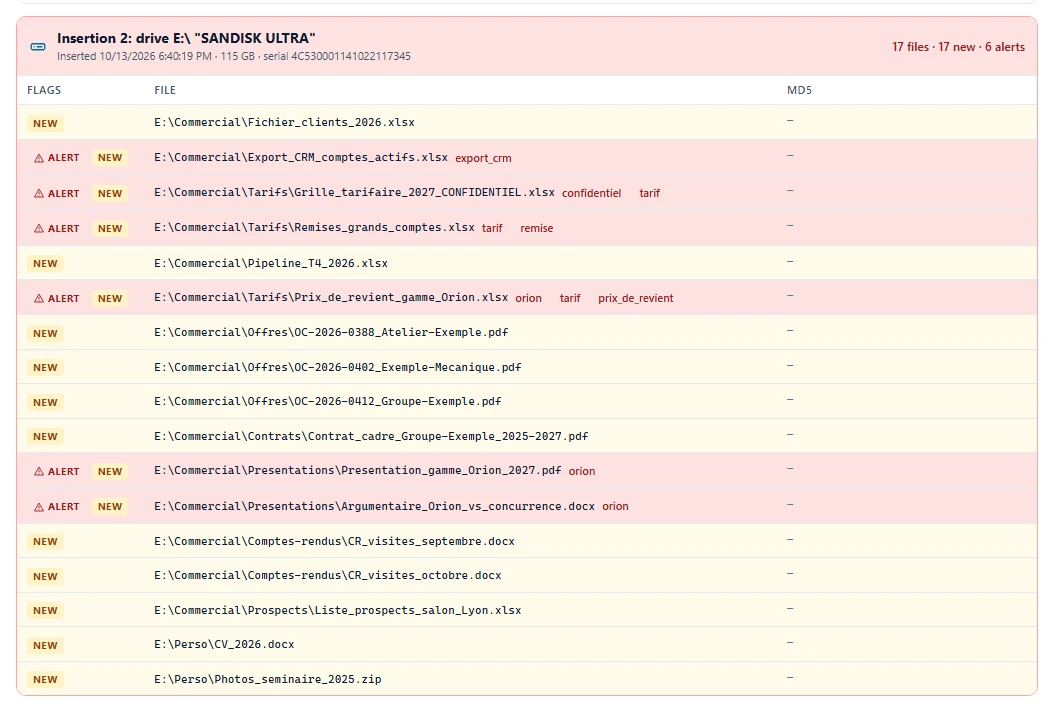
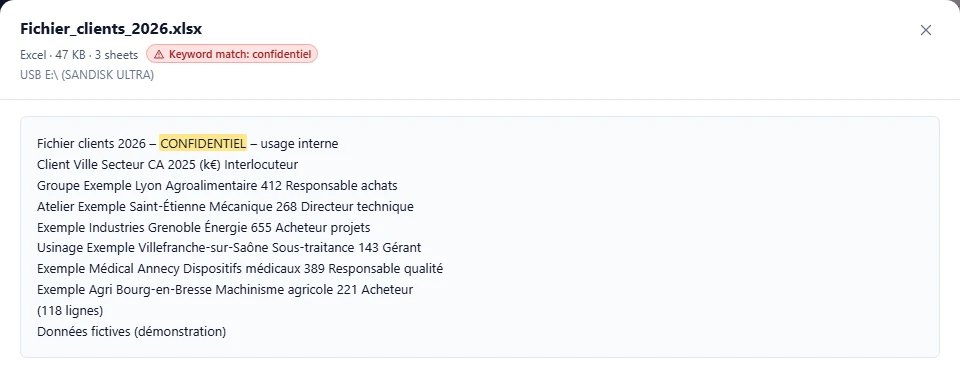
Before the next departure: the list of copied files
VigiDoc, SSHack's DLP software for Windows endpoints, logs every USB drive session: insertion and removal, letter, volume name, size and serial number, then every file copied or overwritten on the drive, with the time. An encrypted copy of each file goes to a server installed on your premises, and an alert appears in the Dashboard when a keyword you defined shows up in a file's name or content (.txt, .pdf, .docx, .xlsx, .zip). VigiDoc detects and alerts: it lets the copy happen and keeps a record of it.
VigiDoc is not retroactive: it will not reconstruct a copy made before it was installed. It also does not track phones connected in file transfer mode (MTP), and for a password-protected archive it only records that the archive left. To know which files are copied before the next departure, try VigiDoc for 30 days: the trial starts as soon as the server is installed, with no license to request.
Frequently asked questions
Does Windows keep a list of files copied to a USB drive?
No, not with its default settings. Windows records the drive (model, serial number, connection times) and sometimes the files opened from the drive, but not the files copied to it. That list only exists if "Removable Storage" auditing (event 4663) or DLP software was active before the copy.
How do I see the history of USB drives connected to a Windows computer?
The command reg query HKLM\SYSTEM\CurrentControlSet\Enum\USBSTOR /s lists the USB storage devices the computer has already recognized, with their serial numbers. The PowerShell command Get-PnpDeviceProperty gives their first install, last arrival and last removal dates. Event 1006 in the Microsoft-Windows-Partition/Diagnostic log timestamps every connection and removal.
How long does Windows keep USB drive history?
The registry keeps a record of a drive indefinitely, until the device is uninstalled or a major Windows update is installed. Event logs are circular: the oldest events are overwritten once the log reaches its maximum size, which was 16 MB for Partition/Diagnostic on our test machine and is 20 MB by default for the Security log.
Do I need administrator rights to see USB drive history?
Not for most of it. On our Windows 11 machine, the USBSTOR registry key, Get-PnpDeviceProperty, setupapi.dev.log and the Partition/Diagnostic log could be read from a non-elevated console. The Security log (events 6416 and 4663) and the auditpol /get command, on the other hand, require a console run as administrator.
What if we get the USB drive back?
The drive then becomes the best piece of evidence: the files on it and their dates can place the copy in time, because a copied file usually takes the time of the copy as its creation date and keeps its original modification date. These dates are easy to alter, and the drive may have been wiped. Examining it, especially if it belongs to the employee, is a job for a forensic expert and a lawyer.
What should I do if I suspect an employee copied files before leaving?
If legal action is on the table, do not explore the computer yourself: every action changes traces. Have a specialist make a copy of the disk and leave the question of evidence to a lawyer. No analysis, however, will reveal a list of files that Windows never recorded.
Sources
- Compass Security, Investigating Data Leakage via External Storage Devices, blog, April 26, 2019 (investigation case, Windows 10 computer; 831 files listed by auditing, 7 by the default traces).
- Microsoft Learn, Audit Removable Storage, archived Windows 10 documentation (2021).
- Microsoft Learn, 4663(S) An attempt was made to access an object, fields and access codes (2021).
- Microsoft Learn, Audit PNP Activity and event 6416 (2021).
- Microsoft Learn, System Audit Policy recommendations, Windows default values (June 2025).
- Microsoft Learn, EventLogService Policy CSP, default Security log size (20 MB) and overwriting of older events (March 2025).
- Microsoft Learn, SetupAPI Text Logs and DEVPKEY_Device_FirstInstallDate.
- Elcomsoft, USB Device Forensics on Windows 10 and 11, blog, February 2026 (serial numbers generated by Windows, dates stored in UTC, volume serial number in shortcuts).
- Ilya Kobzar, Windows updates and anti-forensics (part 1, USB devices), September 9, 2021 (tests on Windows 10 1809 and 1903).
- French Labor Code, article L1222-4 (in French), Légifrance.
- SSHack team tests, October 14, 2026: Windows 11 Pro 26H2 (build 26300), Windows PowerShell 5.1, non-elevated console.